Showing posts with label Windows Vista. Show all posts

Thursday, June 10, 2010

Disabling Vista’s User Account Control (UAC)

User Account Control (UAC) is a feature in Windows Vista that can help prevent unauthorized changes to your computer. UAC does this by asking you for permission or an administrator* password before performing actions that could potentially affect your computer's operation or that change settings that affect other users.

UAC will alert you with one of the following messages:

Windows needs your permission to continue

A Windows function or program that can affect other users of this computer needs your permission to start. Make sure to ensure that it's a function or program you want to run.

A program needs your permission to continue

This will happen when a program that's not part of Windows needs your permission to start. It has a valid digital signature indicating its name and its publisher, which helps to ensure that the program is what it claims to be. Make sure that this is a program that you intended to run.

An unidentified program wants access to your computer

This is caused by a program that your administrator has specifically blocked from running on your computer is trying to run. To run this program, you must have an administrator unblock it.


The main reason to use UAC is to prevent malware and spyware from installing or making changes to your computer without your permission. This comes in handy when you have users who may go to inappropriate websites or download software from the Internet that may be of risk to their computer. If you trust your users or if its just you that will be using your computer and you are confident that you will not be installing anything you shouldn’t then you can turn this feature off.

Here is how you turn the User Account Control feature off:
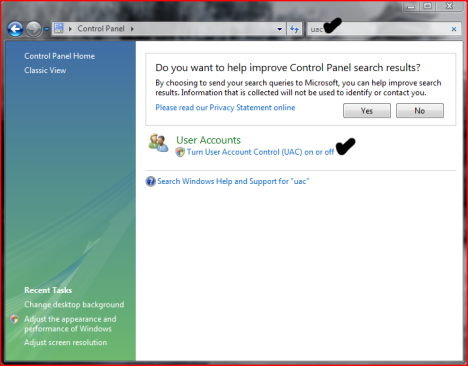
  • Open User Accounts from Control Panel.
  • Click on turn User Account Control on or off.
  • Uncheck the box that says Use User Account Control (UAC) to help protect your computer.
  • Click Ok. You may have to enter administrator credentials depending on who you are logged in as.
  • Restart your computer for the changes to take effect.

Friday, May 7, 2010

Tips for creating strong passwords on Windows 7 (and Vista)

bitlockerPasswords are secret string of characters that help ensure unauthorized users do not access the computer. It is being use to log on to a computer system and access programs, documents, and other resources. This is being use widely on websites, and computers running in any operating system.

It can be made up of letters, numbers, especial symbols, and spaces.

Tips for creating a secure password

  • Is at least eight characters long
  • Does not contain your family name, user name, company name or any words relating to you
  • Does not contain a complete word
  • different from previous passwords

Contains characters from each of the following four categories:

Uppercase letters A, B, C
Lowercase letters a, b, c
Numbers 0, 1, 2, 3, 4, 5, 6, 7, 8, 9
Symbols found on the keyboard
\ - + ~ ! @ # $ % ^ & * ( ) _ = { } [ ] | : ; " ' < > , . ? / `

Create an easy-to-remember piece of information that can be use as a password that combines all the categories. Relate your password to a favorite hobby, foods or words.

Lower Case
facebook
f@c3800k

Upper Case
regdevelop
r3gd3v3l0p

Alternating Case
yesterday
Y3$73rD@y

There is a Web Application that I’ve made that easily change the words like the above example.

If you feel you must write down your password in order to remember the character combination, make sure you don't label it as your “secret” password, and keep it in a safe place. This time a random password generator is recommended.

Some people create an acronym from an easy-to-remember information of your personal information. For example, a phrase that is meaningful to you and its impossible for you to forget, such as My brothers birthday is 6 August, 1974. Using that phrase as your guide, you might use Mbbi6/Aug,74 for your password.

If your a kind of person that doesn’t wants to memorize complicated passwords and you want the plain and readable ones. This time, anencrypted password generator is recommended.

Encrypted password generator creates a balance between the unrecognizable secure passwords and easy-to-remember password ones.

From a very simple word like “hello” into a strong and encrypted words.

1. Use the tool to generate the secure password and memorize your suggested word only.

2. Before login to your online bank, mail, facebook, myspace, friendster or any social networking website, go to the Windows For Us Encrypted password Generator and use the tool to create your encrypted password.

You don't need to memorize the secure password because you can go back to the website and generate the secure password again then afterwards, use that for login.

Hope this helps!

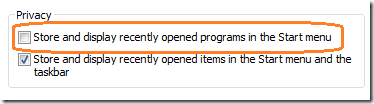
Display/Clear the Recent Programs in Windows 7 and Vista Start Menu

startmenuThis is one of the unique features of WinBubbles that enhances the usual clearing of recent program list in the Start Menu.
Same with Google in their Web Browser Google Chrome, the new version of WinBubbles aims to give “suggestions” on several features that Windows 7, Vista and the future version of Windows should have.

It’s also my interest to help users understand more about the world of computers we live today.

Windows 7 Settings

storedisplay

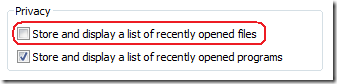
Vista Start Menu Settings

vistasettings

Using the new version of WinBubbles, you can clear these items and restore them back if you need them.

Clear the Icons

clear

Re-Display the Program List

redisplay


How to Get the Product Key in 64-Bit version of Windows 7

Many users believed in the negative feedback during the start of Vista campaign several years ago. We all know that the operating system has undergone a lot of changes and each changes needs adaption.

Unfortunately, many users wipe out the OS itself after buying a new Vista machine, replaces it with Windows XP and they forget to check if there’s a backup CD or copy of the product key.

Most of the manufacturers nowadays doesn’t give the installer of the OS.

Prevention is Better than Cure

Using the new version of WinGuggle, you can create a backup if you don’t have the original installation disc of your 64-bit version of Windows.

Just run the program and copy the product key for safe keeping.

Windows 7 64-Bit Enterprise Edition

windows7enterprise

Your antivirus program will not give any alarm and also works with 64-Bit version of Vista, Microsoft Office XP, 2003 and 2007!

Hope this helps!

Using WinBubbles as TweakUI for Windows 7 (and Vista)

WinBubble is an easy-to-use FREE tweaking and customization utility that focuses on enhancing your Windows 7 and Vista Experience. Even If your not a dedicated or just starting to learn to customize your computer, WinBubble will make every tweaking much easier.

Not Just For the Geeks But For All!

New Features of WinBubble Version 2!

Modifying Owner Information and Branding your Windows 7 Machine

bitmapbrowser

The new version automatically loads and scans your PC with available bitmap files and lets you change user information easily.


Welcome Screen Wallpaper Customization and other Logon Features

WelcomeScreenCustomizations2

you can easily customise the Welcome Screen wallpaper before login using the ease of access center icon located at the lower left side of the screen. The program automatically convert all your existing wallpapers and put them into one location in which each file size less than 250kb. The automatic image converter was tested to more than 4,300 images ranging from different sizes.


Hidden Windows Utilities in Windows 7 and Vista

winutilities

Want to learn about these hidden tools in Windows 7 and Vista? WinBubble was designed to access this tools in one location for educational and maintenance purposes.


WinBubble Built-in Tools

cmdprompt

cmd

WinBubble is loaded with small tools that makes your life easier.


My Computer, Desktop, Control Panel and Icon Customizations

MyComputerCustomization

The great thing about the new version of WinBubbles is that you can customise many simple things in Windows 7 for free. For example changing the drive icons easily using the existing Windows high resolution Icons, Useful Right-Click Menu Customizations and many more. WinBubble will do it for you in just few clicks.


Read more:

Adding Icons to Control Panel, My Computer and Desktop

Icon Customization in Windows 7 and Vista

Easily Change the default File-Type Icons in Windows 7 and Vista

Adding Icons to Right-Click Menu in Windows 7

Useful Right-Click Menu and Desktop Customizations using WinBubble

computerrightclickmenu2

DesktopRightClickMenus

rightclickmenu%5B4%5D[1]

There are so many things that you can do with the new version of WinBubble especially in Windows 7. The possibility are endless especially when I acquired the necessary skills in the next few months.

Thursday, April 29, 2010

How to Safely Restart Windows Explorer in Vista

Lets face it, everyone has seen the explorer closing after putting the computer under cryogenics and leaving the user in a state of panic to save the current work. And the only remedy was to close the explorer process using Task Manager, which was not exactly an efficient way to do it because it left one with nothing but the desktop staring at the users face.

How to Safely Restart Windows Explorer in  Vista - The Ethical Hacking

Thankfully, Microsoft have admitted (in a shy kind of way) to this and
have provided a “legal” and safe way to close the explorer.


The trick tucked-away in the Start menu of Windows Vista lets you restart Windows Explorer without hastily killing its process and potentially breaking your session.


The Trick
  • Open the Start menu.

  • Hold down the Control and Shift keys, and right-click on a blank space in the Start menu.

  • Choose “Exit Explorer.”

  • Open the Task Manager (Ctrl+Shift+Esc), navigate to File->Run, enter “explorer” and hit OK.
Why would you ever want to restart Explorer, you might ask? To try out new system modifications, for one, or try and rescue your desktop from crashing. In any case, the Geek’s method gives Explorer a chance to properly close down and protect against any strange occurrences down the road.

 
Design by Free WordPress Themes | Bloggerized by Lasantha - Premium Blogger Themes | Best Web Hosting