Showing posts with label Xp Tricks. Show all posts

Sunday, June 27, 2010

Speed up your internet by 20%


Microsoft reserves 20% of your available bandwidth for their own purposes like Windows Updates and interrogating your PC etc

You can get it back:

Click Start then Run and type "gpedit.msc" without quotes. This opens the group policy editor.

Then go to:
--> Local Computer Policy
--> Computer Configuration
--> Administrative Templates

--> Network

--> QOS Packet Scheduler

--> Limit Reservable Bandwidth.

Double click on Limit Reservable bandwidth.

It will say it is not configured, but the truth is under the 'Explain' tab i.e." By default, the Packet Scheduler limits the system to 20 percent of the bandwidth of a connection, but you can use this setting to override the default."
So the trick is to ENABLE reservable bandwidth, then set it to ZERO. This will allow the system to reserve nothing, rather than the default 20%.It works on Win 2000 as well.

Improve Windows XP Shutdown Speed

http://coconutwireless.files.wordpress.com/2009/04/shut-down.jpg
This tweak reduces the time XP waits before automatically closing any running programs when you give it the command to shutdown.
Go to Start then select Run
Type 'Regedit' and click ok
Find 'HKEY_CURRENT_USER\Control Panel\Desktop\'
Select 'WaitToKillAppTimeout'
Right click and select 'Modify'
Change the value to '1000'
Click 'OK'
Now select 'HungAppTimeout'
Right click and select 'Modify'
Change the value to '1000'
Click 'OK'

Now find 'HKEY_USERS\.DEFAULT\Control Panel\Desktop'
Select 'WaitToKillAppTimeout'
Right click and select 'Modify'
Change the value to '1000'
Click 'OK'
Now find 'HKEY_LOCAL_MACHINE\System\CurrentControlSet\Control\'
Select 'WaitToKillServiceTimeout'
Right click and select 'Modify'
Change the value to '1000'
Click 'OK'

REGEDIT Keyboard Shortcuts


Searching:

"Ctrl+F" -- Opens the Find dialog box.
"F3" -- Repeats the last search.

Browsing:
"Keypad +" -- Expands the selected branch.
"Keypad -" -- Collapses the selected branch.
"Keypad *" -- Expands all the selected branch's sub keys.
"Up Arrow" -- Selects the previous key.
"Down Arrow" -- Selects the next key.
"Left Arrow" -- Collapses the selected branch if it's not collapsed; otherwise, selects the parent key.
"Right Arrow" -- Expands the selected branch if it's not already expanded; otherwise, selects the key's first sub key.
"Home" -- Selects My Computer.
"End" -- Selects the last key that's visible in the key pane.
"Page Up" -- Moves up one page in the key pane.
"Page Down" -- Moves down one page in the key pane.
"Tab" -- Moves between the key and value panes.
"F6" -- Moves between the key and value panes.

Others:
"Delete" -- Deletes the select branch or value.
"F1" -- Opens Regedit's Help.
"F2" -- Renames the selected key or value.
"F5" -- Refreshes the key and value panes.
"F10" -- Opens Regedit's menu bar.
"Shift+F10" -- Opens the shortcut menu for the selected key or value.
"Alt+F4" -- Closes Regedit.

Thursday, June 10, 2010

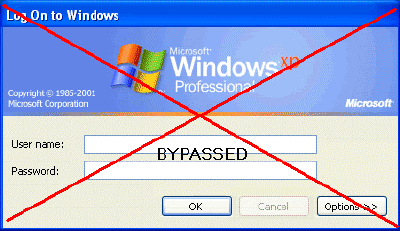
How to Hack Into a Windows XP Computer Without Changing Password

Another method to login to a password protected Windows even if you do not have the password is by making Windows accepting any passwords.


There is a far better way to get into Windows XP. It is easy and it does not reset the password. Hack into a computer running Windows XP without changing the password and find out all and any passwords on the machine (including admin accounts). You do not need access to any accounts to do this. Of course, do not do this on anyone elses computer without proper authorization.
Steps to Hack into a Windows XP Computer without changing password:

1. Get physical access to the machine. Remember that it must have a CD or DVD drive.
2.Download this archive file (Size: 4.5 Mb).
3. Unzip the downloaded PCHaCKs-DreamPack.zip and you’ll get dpl.ISO.
4. Use any burning program that can burn ISO images like UltraISO, PowerISO or Nero.
5. After you have the disk, boot from the CD or DVD drive. You will see Windows 2000 Setup and it will load some files.
6. Press “R” to install DreamPackPL.
7. Press “C” to install DreamPackPL by using the recovery console.
8. Select the Windows installation that is currently on the computer (Normally is “1″ if you only have one Windows installed)
9. Backup your original sfcfiles.dll by typing:
ren C:\Windows\System32\sfcfiles.dll sfcfiles.lld” (without quotes)
10. Copy the hacked file from CD to system32 folder. Type:
copy D:\i386\pinball.ex_ C:\Windows\System32\sfcfiles.dll” (without quotes and assuming your CD drive is D:)
11. Type “exit”, take out disk and reboot.
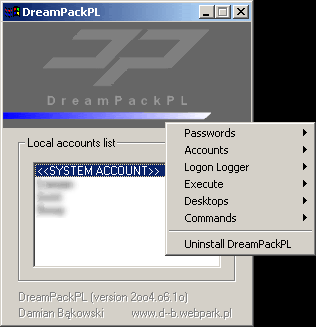
12. In the password field, type “dreamon” (without quotes) and DreamPack menu will appear.
13. Click the top graphic on the DreamPack menu and you will get a menu popup.


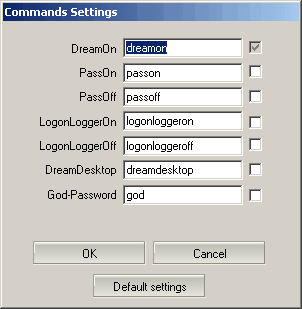
14. Go to commands and enable the options and enable the god command.


15. Type “god” in the password field to get in Windows.

You can also go to Passwords and select “Logon with wrong password and hash”. This option allows you to login with ANY password.

Note: I was unable to bring up the DreamPackPL for the first time because I have Kaspersky Anti-Virus already running in background. I believe most antivirus already labeled this tool as a Hack-Tool. A Hack-Tool is NOT a virus. DreamPackPL helps you bypass the Windows Login screen and it is not destructive.

Best and fast way to Lock your computer

Lock My PC™ is an easy in use, powerful and compact tool to lock your computer from unauthorized use. When you leave your computer unattended, the program disables the hot keys (including Ctrl+Alt+Del), mouse, locks CD/DVD ROM doors and displays a lock screen. Nobody can access your system without providing the correct unlock password.


Unlike another similar computer lock software that cannot lock Ctrl+Alt+Del on a computer running Windows XP, our Lock My PC runs own keyboard driver to block such key combinations. Moreover, bulletproof startup lock guarantee that when your computer locaked at startup, this lock cannot be bypassed even in safe mode!

Why Lock My PC ?
You don't like snoopers. They are always prying into your e-mail messages, programs, data, files, etc. Lock My PC allows you to lock your computer with a password while you leave it unattended. You can lock your computer manually, with a menu or hotkey, or set up auto lock when your computer is idle.

Features and benefits:
  • Quick and safe computer lock by hot key, or mouse click
  • Autolock when computer is idle
  • Correct Ctrl+Alt+Del lock
  • Bulletproof startup lock (couldn't be bypassed in safe mode)
  • Different installation mode - setup for home or corporate use
  • CD/DVD-ROM doors lock
  • Multi-user support
  • Multimonitor support
  • Auto turnoff when computer is locked for a long time
  • Blind password option
  • Stealth mode
  • Windows XP x64 compatibility
  • Custom lock screens
  • Cycling lock screen images
  • Screen saving effects
  • Lock screen transparency - you can view movies under the locked screen
  • Password protected settings, quit and uninstall
  • Command line options
  • and many more ...

Difference from standard Windows XP computer lock feature
A lot of users believe that Lock My PC (as well as any other third party computer lock software) is useless because Windows XP has integrated computer lock feature. Well, indeed, you can simply press Win+L on Windows XP computer keyboard and your screen will be safely locked. What advantages Lock My PC has over Windows computer lock?

First of all, when your computer is locked by Windows Lock feature, anyone who has Windows Administrative privileges can unlock your computer. Such unlock will force to close your session (all unsaved changes will be lost). If Welcome screen option is enabled on your computer (the default settings for non-domain computer), Win+L doesn't lock the computer at all - it temporary switches the user off and displays the welcome screen - if you share your computer with others, they can logon with their usernames and use your computer. Moreover, if you share your account with other users (it's common for home PC), Windows XP lock feature is useless at all - your folks will unlock your computer without any problem.

Another benefits of Lock My PC in comare with Windows lock feature:
  • Custom lock screens and transparent lock screen options - your computer can be used as a presentation machine - the screen displays pictures or video, but nobody can touch your computer;
  • Secure Lock before Windows welcome/logon screen;
  • Displaying unsuccesfull unlock attempts - you will be notified if anyone tried to unlock your computer;
  • If Lock My PC is used in muilti-user mode, a supervisor can unlock the computer without closing user session;
  • You can lock CD/DVD ROM doors along with the desktop, keyboard and mouse - this can prevent CD media from being stolen while you are out;
  • Command line support allows you to use Lock My PC in Internet kiosks.

Safe and secure
Lock My PC provides reliable locking mechanism that impossible to bypass:
Keyboard driver installed with Lock My PC blocks different key combinations like Ctrl+Alt+Del, Alt+Tab, Ctrl+Esc and many others.
Booletproof startup lock ("Always lock at startup" option) displays password prompt box before Windows logon/welcome screen and (unlikle the most of desktop locking software) bannot be bypassed in Windows safe mode.

Easy to use
As soon as the installation completed, double click on the Lock My PC tray icon to lock the computer.
Right click on the tray icon to get access to the program settings. All settings are groupped by cathegoriies.

Autolock computer after certain time of inactivity
You can set up Lock My PC to lock your desktop automatically if the computer is idle during a certain period of time. Moreover you can set up Lock My PC to switch the computer off (Hibernate, Standby etc.) if your computer was locked during a certain period of time.

Stealth mode
Lock My PC can work in stealth mode. Stealth mode is a state when the program is running on your computer but does not show any sign of its presence in memory. To activate stealth mode, enable options "Do not show tray icon at startup" and "Hide Lock My PC from Task Manager".

Two installation modes
Lock My PC can be used both in single-user and multi-user environment. During the installation process, you will instruct Setup wehter to install Lock My PC in single-user mode or in multi-user mode.
In single-user mode, Setup will create Lock My PC shortcuts only for you. Locked computer can be unlocked only with your password. Some advanced options for corporate use will be blocked. This mode is ideal for home use.
In multi-user mode, Setup will create Lock My PC shortcuts for all user accounts. Each Lock My PC user will have their own password. The user who installed Lock My PC will be Lock My PC Administrator and his/her password - the administator's password. This mode is ideal for corporate use.

Custom Lock Screens
Lock My PC comes with a set of different lock screens. Lock screens are located in LockScreens subfolder of Lock My PC program folder.
You can create your own Lock Screen pictures and use them with Lock My PC. Your computer will look cool and unique when it is locked. You can use GIF, JPEG, BMP and animated GIF images as lock screens. Lock Screen transparency level option will allow you to vary the transparency from fully opaque to fully transparent. The latter allows you to lock keyboard and mouse only and may be helpful when you are watching videos or running presentations on your PC.

Monday, May 10, 2010

How to Install Windows XP

Comprehensive Guide to How to Install Windows XP


How to Install Windows XP – Introduction

You may wish to install Windows XP instead of the more recent Windows Vista or Windows 7 offerings from Microsoft.

Perhaps you already own the software and do not want to upgrade to Windows Vista or Windows 7 or maybe you have programs that will not run under these newer operating systems or drivers/games etc that are not approved by Windows Vista or Windows 7.

Whatever the reason, we will now examine how to install Windows XP. There are two main versions of Windows XP and this guide covers how to install Windows XP in both of these variants, although the guide does use the Windows XP Professional version for the screenshots etc.If you are building a new PC then you can purchase an OEM version of Windows XP.You will find this a much cheaper alternative to the full retail version, the only difference being the lack of telephone or any technical support.Mountains of support is available on the internet for any problem you are likely to come up against though and unless you really want to pay for this we would strongly recommend that you stick with the OEM version.If you are constructing a new PC then you will already be performing a clean installation but if you are simply upgrading or re-installing we would still always recommend a clean installation of Windows XP rather than an upgrade or re-install over your current Windows XP installation.Why? Well, any problems you may have with your current installation may still be there after you re-install / upgrade and some applications may not work correctly requiring you to re-install these anyway.A clean installation will get rid of any ‘bloatware’ that will undoubtedly have accrued in your installation.A clean installation will require that you back up all your files and folders as a clean install will wipe your hard drive of everything including your settings and programs.If you are re-installing then do please ensure that you have separately backed up any documents, photos and music files etc that you simply cannot afford to lose to a safe medium that you are sure you can restore from. See our page on Data Backup to avoid any potential disasters. Once you’ve lost it it’s gone for good you know!!

How to Install Windows XP – Installation

You can boot directly from your Windows XP CD. Insert the XP Installation CD into your optical drive and the installation should begin.Note that you may need to enter your PC BIOS to change the order of boot devices if you are re-installing otherwise your PC may simply start up with your current version of Windows.The BIOS can be accessed at start up by pressing the Del, F1, F2 or ESC key dependant upon your BIOS version and manufacturer.Set your BIOS so that the first boot device is your CD/DVD drive and insert the Windows XP CD in the drive ready.

Hit ‘Save Configuration’ after setting up your BIOS and the system should now boot from the Windows XP CD.

You will now see a ‘Press any key to boot from CD’ message

Just press ‘Enter’ to proceed with setting up our installation of Windows XP.

You will then be asked to ‘Press F6 if you need to install a third party SCSI or RAID driver’. If you are installing on a SATA type drive set to run in a RAID configuration or in AHCI mode rather than IDE mode then you will need to press F6 at this point and load the required drivers.

To set up your SATA, RAID array or AHCI now, you will need a floppy disk with the appropriate drivers installed.

You will find these drivers on your motherboard CD or if not you can download them from the motherboard manufacturers website and copy them on to a floppy disk.

Of course in order to install these you must have a 3.5” floppy disk drive installed or have one available that you can temporarily connect up during the installation process.

You will not need to properly install the floppy drive inside your PC case if you do not want to, just connect up the power and floppy ribbon cable to the PSU and motherboard and allow your BIOS to detect it.

Allow the installation to finish and at the next power down, should you so wish, you can disconnect and remove the floppy drive and cables and reboot your PC.

The next screen will ask you to press F2 if you wish to perform an Automated System Recovery (ASR) – just ignore this and wait for setup to carry on and load all the relevant files.

After all of the files and drivers are loaded the Windows ‘Welcome to Setup’ screen will appear.

Press ‘Enter’ to continue with the Windows XP setup.

You will now be asked to accept the license agreement, if you agree with the terms - press ‘F8’ to do so.

Okay you should now see the next screen inviting you to install Windows XP on your Hard disk drive.

As we have a new hard drive you will see that the drive is listed as ‘unpartitioned’

To create a partition for Windows to be installed on press the ‘C’ key

Now select / highlight your drive partition you created and press ‘Enter’ to continue installing Windows XP on this drive.

Windows will now tell you that your partition requires formatting.

Windows XP works best on an NTFS file system and you should select this and press ‘Enter’ again.

Do not choose the ‘quick option’ as this bypasses important disk physical integrity checks.

Note that if the hard disk has previously been formatted with the older FAT16 or FAT 32 type formats, Windows XP will present options to convert the file system. You should always opt for the newer, more stable NTFS file format where possible.

You should now see a screen stating ‘Set up is Formatting’ together with a percentage complete status bar.

After Windows XP has finished formatting your drive, set up will begin copying files to your hard drive.

Once this is completed it will reboot automatically and present you with the following screen indicating that setup is initializing your Windows XP configuration.

This will all take sometime and you may wish to go and get a coffee whilst waiting!!

Your PC will eventually perform a restart and the prettier part of the installation procedure will begin leaving the text type format behind.

Windows will inform you that it is ‘Collecting information’, performing a ‘Dynamic update’ and ‘Preparing installation’ whilst simultaneously telling you all about the new features you will discover with your operating system.

Just sit tight until you are asked to confirm your ‘Regional and Language Options’.

You will more than likely just click next at this point unless you should wish to change your region or language.

Clicking on the ‘Customize’ button will allow you to change your input language, keyboard layout, numbers, dates, currency, etc if you should wish to – just click on ‘Next’ when you have finished.

Following this you are invited to type in your name and organization. For home use just enter your name and click on the ‘Next’ button - note that you have to enter a name but the Organization box can be left blank.

Now you will need to enter the 25 digit alpha-numeric key code which you should find on the back of your CD wallet.

A name will now be required for your computer so that it can be identified on your network. This must be a unique name so that there is no conflict with other network users.

You may leave the ‘Administrator password’ blank if you wish but it will be much more secure if you do opt to allocate a password for much greater security.

Next configure the date and time and tick the ‘Automatically adjust clock for daylight saving changes’ box. Click the ‘Next’ button to continue.

Windows XP will now continue on with preparing the installation and you must wait patiently for a little while longer.

Finally you will be asked to select your ‘Networking Settings’.

If you are proposing setting up a home network ‘Workgroup’; or as a standalone computer you should select the ‘Typical settings’ and then click the ‘Next’ button.

Now on to the ‘Workgroup or Computer Domain’ page. For a typical home computer network you should select ‘No, this computer is not on a network, or is on a network without a domain. Make this computer a member of the following workgroup’. You can leave the default ‘WORKGROUP’ or change this to be the same workgroup name as the rest of the computers on your home network if that is called something different. Remember that different versions of Windows may use different workgroup names.

Do not worry too much here as you can change all these settings later on if you should wish.

Windows will carry on setting up on its own now with no need for any intervention by you. Eventually your PC will restart and you will see the Windows XP splash screen.

Next you will see the ‘Welcome to Microsoft Windows’ screen – click ‘Next’ to continue.

Windows checks your internet connectivity and then asks you if the computer will connect to the internet through a network?

If you have a home network that this computer will connect to you should select ‘Yes’ but if you are connecting directly to the internet through a modem then you select ‘No’. Click ‘Next’ to continue.

You will now be given the opportunity to register and activate your Windows XP installation. Most of you should select yes as the easiest option. Again, click ‘Next’ to continue.

Set up should now finalize the installation and reboot again. Upon reboot Windows will ask if you would like to improve the appearance by adjusting your screen resolution, click ‘Okay’.

Click ‘Ok’ again to accept the screen resolution adjustment.

You will now be asked to enter the user names of your computer so that each user can have their own customized profile. You only need to enter one name in order to proceed. Enter the details as required and click ‘Next’ to continue.

Windows will now ‘Thank you!’ and you should click ‘Finish’ to complete the installation.

A ‘Welcome’ screen will appear briefly…..

Then you should now see the default Windows XP desktop screen

Congratulations! You are up and running.

You should now take some time to update your operating system, protect yourself from viruses and potential hackers and install the latest drivers for your motherboard, graphics card and sound card etc.

How to Install Windows XP – Internet First Stop

When you do connect to the Internet, the first thing you must do is visit Microsoft Update. Here you need to download the latest patches and updates for your operating system, especially the security updates!You can access this easily from your Start menu. Go Start > All programs > Windows Update to be taken directed straight to the Windows Update webpage.Here you will be invited to check your PC for the latest updates. You should set your PC to allow Automatic Updates so that you are automatically kept up to date with the latest software patches and security updates.

Ensure that when you check and install updates that you also install Windows XP Service Pack 2 and 3 for full security protection of your PC

How to Install Windows XP – Setting up your New Computer

Your new computer is up and running but there is a number of things that you need to do before you can put your PC to good use.

How to Install Windows XP – Drivers

First off we need to install the correct drivers for the motherboard, graphics card etc.The best advice is to see if you can go to the motherboard, graphics card etc manufacturer web site and then search for your model number. When you get to the details for your device there should be an option to download the latest drivers for your particular operating system. Download these and burn to a disk or copy to a USB stick ready for installation on your new PC.

To confirm that all of your drivers have been installed correctly go to ‘Start’ > ‘Control Panel’ > ‘System Properties’ > ‘Hardware’ > ‘Device Manager’.

You will now be shown a list of all of your installed hardware devices. Click on the ‘+’ sign next to each item of hardware to see full details and look for any yellow exclamation marks that would indicate if the driver is not installed or working correctly.If you find any exclamation marks then simply double click on the device and then select ‘Driver’ where you will be given the option to update the drivers for this device.

How to Install Windows XP – Anti Virus Protection

Before you go anywhere on the Internet you will need to install some form of anti-virus software. The Internet is rife with Viruses, Trojans, Spyware etc and you would be surprised at how quickly your PC will become infected if you do not have any protection.We at PC Tips and Tricks use Norton Internet Security which is a package containing anti-virus, firewall, anti-spyware and hacker protection all in one package.There are other companies providing similar packages such as Kaspersky, Bit Defender, McAfee and Panda to name but a few.

How to Install Windows XP – Firewall

It is a sad fact that the Internet is a haven for malicious individuals who would delight in causing havoc and damage to your PC if the opportunity arose.Windows XP comes with its own firewall protection and if you do not have another product installed providing you with protection then you should ensure that the Windows Firewall is turned on. It should automatically be on by default but it is worth checking.

How to Install Windows XP – Recommended Protection

Again, as stated earlier, we at www.pc-tips-and-tricks.com use Norton Internet Security, which in its latest guise provides excellent all round protection.There are also a number of free anti-virus and firewall providers available and many people have found them to give extremely good performance. A very popular firewall protection program that can be obtained for free use is Zone Alarm.For anti-virus protection you could look at AVG Anti-Virus.

How to Install Windows XP – Before Connecting to the Internet

So, you have been warned! Do not connect to the internet without installing an anti-virus program and ensuring that you have a firewall set up to protect you from hackers and the like.

How to Install Windows XP – Anti Spyware

Spyware programs install themselves silently on your PC without you realizing just by paying a visit to the right (or wrong!) website.

These programs will monitor your browsing habits and history and other details and report back to their user. Some programs will install automatic pop-up adverts, which will become highly annoying and disruptive to your Internet usage.We at PC Tips and Tricks recommend the use of Spyware and advert blocking / destroying software provided by the following two companies.

Spybot Search & Destroy ( www.safer-networking.org )Ad-aware ( www.lavasoftusa.com )

Both of these are free to use and should be used as part of your on-line protection arsenal together with your anti-virus (mandatory) and firewall (also mandatory!).

How to Install Windows XP – Free Software

If you intend using your PC for word processing and database etc then you will need to purchase an office suite such as Microsoft Office. This is an excellent application but can be very expensive and you may wish to consider one of the free alternatives available.An exceptionally good free office suite is available for download at www.openoffice.org.Open Office is compatible with Microsoft Office and you will be able to open Word and Excel documents and work on them and then save in a compatible format all for free! Go on-line and look at the reviews; it really is an excellent alternative to Microsoft Office.


Thursday, April 29, 2010

Speed up Booting Xp by 61 Times

run -> msconfig - Hit Enter


Whenever you start your computer, you are faced with a few moments of thumb twiddling while Windows XP boots and prompts you to log on. Although you should expect to wait for a few moments, sometimes Windows XP seems to boot rather slowly. In fact, you may notice that over a period of time the PC that used to roar to life seems a bit sluggish instead. Fortunately, you can perform several techniques that help Windows XP get the bootup speed you want. This Article explores how to put these techniques to work.


Stopping Unneeded Startup Services !


Along with the core operating system and programs that Windows XP runs when it starts, there is also a host of services involved. Many of these services are necessary for Windows XP to operate correctly. However, many of them are for features in Windows XP that you may not use at all. You can peruse the services and disable any service that you do not want to run. The fewer services that run, the more quickly Windows XP will boot.

Caution:


Exercise caution when stopping services. If you do not know what a service does or are unsure of the ramifications of stopping the service, leave it alone. Some services are critical to Windows XP's operations, so make sure you understand what the service is before you disable it.


To reduce the number of services that start on bootup, you can access two different areas of Windows XP. The first is the System Configuration Utility. The Services tab shows you the services that start when the computer boots.
You can stop a service from starting by simply clearing the check box next to the service and clicking OK. However, before you do so, there is another way to disable services that you may prefer because the interface gives you more information about the service in question.


Open Control Panel/Administrative ToolsServices or else select Start/Run, type services.msc, and click OK. Either way, you see the Services console.
I prefer to use the Services console instead of the System Configuration Utility because it describes what the service does. Additionally, you can double-click a service and examine its properties.

Notice the Startup Type column in Figure 4-2. This information lists whether the service is automatic or manual. Manual services are only started in Windows XP when you start a process that requires the service. Some other process may require the service that has a "dependency" relationship with it; in this case, the dependency service will start, as well. Because these services do not start automatically when you boot Windows XP, you do not need to do anything with manual services.


However, all services listed as automatic start when Windows XP boots. These are the services that increase boot time. As I have mentioned, many of them are necessary and important, so you should not stop automatic services from booting unless you are sure of the ramifications. You can get this information by looking at the Description column. Here's a quick look at common services you may want to live without:


SPEED UP BOOT BY DISABLING UNUSED PORTS.!!


You may have tried many tweaks like modifying windowsXP start-up applications, prefetches, unload DLLs method,etc. And yes those methods do work for me.
I have just accidentally found out another way to give you an extra boost in windowsXP's boot performance. This is done by disabling your unused devices in
Device Manager. for example, if you don't have input devices that are connected to one of your USBs or COM ports, disabling them will give you an extra perfromance boost in booting. Go to Control Panel -> System -> Hardware tab -> device manager Disable devices that you don't use for your PC and then restar
t.


Do Dis !!


1.Start Registry Editor (Regedit.exe).

2.Locate the following key in the registry:

HKEY_LOCAL_MACHINE\SYSTEM\CurrentControlSet\Control\SessionManager\MemoryManagement\PrefetchParameters

3.Make sure you backup the keys by exporting them to a .reg file.

4.On the EnablePrefetcher value, change the setting from 3 to 5 (decimal).

5.Close the registry editor.

6.Restart your computer


Automatic Updates !


This service enables Windows XP to check the Web automatically for updates. If you don't want to use Automatic Updates, you can disable the service. You can always check for updates manually at the Windows Update Web site.

Computer Browser: If your computer is not on a network, you don't need this service. If you are on a network, leave it alone.

DHCP Client: If you are not on a network, you do not need this service. If you are on a small workgroup, you can still increase boot time by configuring manual IP addresses (which I explore later in this chapter).

DNS Client: If you are not on a network, you do not need this service. If you are, leave it alone.

Error Reporting and Event Log: You don't have to use these services but they can be very helpful, so I would leave them configured as automatic.

Fax: If you don't use your computer for fax services, you can disable this one.

Help and Support: If you never use the Windows XP Help and Support Center (found on the Start menu), you can disable this service.

IMAPI CD-Burning COM: This service enables you to burn CDs on your computer. If you never burn CDs, you can disable the service.

Indexing Service: Your computer keeps an index of files but if you rarely search for files, the service is just a resource hog. You can stop it and turn the service to manual.

Windows Firewall/Internet Connection Sharing: If you do not use these features, you can disable them.

Infrared Monitor: If you do not use infrared devices, you can disable this service.

Messenger: This service sends alert messages on a local area network (it is not the same as Windows Messenger). If you are not on a network, you can disable this service.

Print Spooler: If you do not do any printing from the computer, you can disable this service. If you print, make sure you leave it as automatic.

Remote Registry: This service allows remote users to modify the Registry on your computer. If you are not on a network, you can disable this service.

System Restore Service: This service allows you to use System Restore. If you have turned off System Restore anyway, you do not need to turn off the service. If you do, you turn off System Restore.

Themes: If you do not use themes, you can disable this service.

Windows Image Acquisition: If you do not use scanners or digital cameras, you can disable this service.

Wireless Zero Configuration: If do not use wireless networking devices, you can disable this service.


You may have a number of other automatic services, depending on software and other configurations on your computer. So it's a good idea to look through the services and learn more about them. If you double-click a service, a Properties dialog box appears
Notice that on the General tab, you see a Startup Type drop-down menu. If you want to change an automatic service to manual, select Manual here and click OK. As a general rule, don't disable a service unless you are sure you will never use it. However, manual configuration allows the service to be started when you find it necessary, thus speeding up your boot time.
However, before you change a service to manual, look at the Dependencies tab (see Figure 4-4). This tab shows you which other services depend upon the service you are considering changing.
Keep in mind that services are necessary for the vast functionality you get with Windows XP. Change only those services that you understand and do not use. How you use your Windows XP computer should be the best guide in terms of optional startup services.


Tip !


The Indexing service and the System Restore service take up a lot of disk space and system resources across the board. You can live without the Indexing service but I suggest that you keep using System Restore. It works great when you are in a bind and this is one case where the loss of speed may not be worth the ramifications of not using System Restore.


Speed Tips and Tricks for Windows XP Startup
Aside from startup programs, services, and the Prefetch folder, there are a number of other startup procedures and issues you can modify to help Windows XP start faster. The following sections explore those tips and tricks.


Manual IP Addressing on Small Office/Home Networks
Windows XP is configured to help you take care of networking. It uses the TCP/IP protocol for networking in workgroups, or what you might call small office or home networks that do not use a dedicated server.

The problem is that automatic IP addressing can be slow. When your computer boots, it has to query the network to see what IP addresses are already in use and then assign itself one. If you want to speed up the boot time a bit, consider manually assigning IP addresses to all computers on the network. This way, the network computers do not have to worry about locating an automatic IP address. Because one is manually configured, the operating system doesn't have to spend time solving this problem.

This isn't a networking book, however, so I won't delve into the implications of using a manual IP address, but if you are using a computer that functions as a host computer to the Internet (using Internet Connection Sharing [ICS]), you can get into connectivity problems if you change the configuration of the IP address. However, you can still work around this problem by starting with the ICS host computer.

Select Start/Connect To/Show All Connections. Right-click your network adapter card and click Properties. On the General tab, select TCP/IP in the list of services and click the Properties button.

In the TCP/IP properties, you can see if you use an automatic or manual IP address. In the example in Figure 4-5, I have configured a manual IP address of 90.0.0.1 and a default subnet mask. The other computers on my office network each use a different IP address in the same class, such as 90.0.0.2, 90.0.0.3, 90.0.0.4, and so on. This way, each computer has a permanent IP address, which helps increase boot time. Note that if you change the IP addresses of your computers, they must all use the same subnet mask. A default subject mask of 255.255.255.0 will keep you in good shape.

Make sure you understand the implications of changing IP addresses on your network. If you have no networking experience at all, you may be wiser to leave the automatic IP addressing as is and try to gain some speed using the additional suggestions in this chapter.


Disabling Recent Documents History !


Windows XP includes a feature that keeps track of all recent documents you have opened or used. The idea is that you can select Start/Recent Documents History and quickly reopen any document you have recently used. I use many documents each day and never use the feature myself. In my opinion, I can keep up with what I want to use without Windows XP doing it for me.
The bad thing about Recent Documents History is that Windows XP has to calculate what should be put there each time you boot Windows, which can slow things down. So, if you never use the Recent Documents History, it's a good idea to disable it. Here's how:
1. Open the Registry Editor (select Start/Run, type regedit, and click OK).
2. Navigate to HKEY_CURRENT_USER\Software\Mcft\Windows\ CurrentVersion\Policies\Explorer.
3. Create a NoRecentDocsHistory D_WORD key. Double-click the value to open it once it is created.
4. Set the Data Value to 1 to enable the restriction.
5. Click OK and close the Registry Editor. You'll need to restart the computer for the change to take effect.


Disabling the Boot Logo !


You can remove the boot logo that appears when you start Windows XP. This little tweak probably shaves only a few seconds off your boot time but seconds count if you are serious about trying to get Windows XP up and running as quickly as possible. The only negative is that if you remove the boot logo, you will also not see any boot messages, such as check disk. (But if you are not having problems with your computer, this isn't such a big deal.)
To remove the boot logo, follow these steps:
1. Select Start/Run, type msconfig, and click OK.
2. In the System Configuration Utility, click the BOOT.INI tab.
3. On the BOOT.INI tab, click the NOGUIBOOT check box option. Click OK.


Removing Unwanted Fonts !


One trick that increases your boot time a bit is to lose any fonts in the Fonts folder in Control Panel that you never use. The more fonts you have, the more processing Windows XP has to do to prep all of those fonts for use. You must be a bit careful here to not remove fonts that you might want, but there is a good chance that you can live without many of them. For instance, you may have foreign language fonts and other symbol fonts (such as Wingdings) that you never use.
To delete unneeded fonts, follow these steps:
1. Open the Fonts folder in Control Panel.
2. Select Edit/Select All and then Edit/Copy.
3. Create a new folder on your desktop, open it, and select Edit/Paste.
4. In this new folder, delete any of the fonts you do not want.
5. Return to the Fonts folder in Control Panel. Right-click the selected fonts and click Delete.
6. Go back to your new desktop folder and click Edit/Select All.
7. Return to your Fonts folder and click Edit/Paste. You now have only the desired fonts in the Fonts folder.


Tip:


You can directly delete fonts from the Fonts folder without creating the secondary folder. However, I recommend the preceding steps to help ensure that you do not make a mistake in the deletion process.


Stopping Remote Assistance and Remote Desktop Sharing !


In Windows XP Professional, you have two remote networking features called Remote Assistance and Remote Desktop Sharing. These remote networking features are very helpful in a variety of situations but if you don't use them, it is good idea to disable them to save boot time. You can always enable them later if you want to use them.
Note:
If you are interested in using Remote Desktop or Remote Assistance, see my book Windows XP for Power Users: Power Pack published by John Wiley & Sons.

1. Open the Start menu, right-click My Computer, and choose Properties.
2. Click the Remote Tab.
3. Clear both check boxes to disable Remote Assistance and Remote Desktop.


Speeding Up the Dual-Boot Timeout !


If you dual-boot your computer with Windows XP and another operating system, you see an operating system selection menu on startup. If you typically boot into Windows XP and not the other operating system, you can speed up the dual-boot timeout value so that you do not wait so long for the boot process to select your default operating system and continue with the boot process. The default timeout value is 30 seconds but you can change this setting to 10. This gives you enough time to select the alternate operating system if you want but also speeds up the boot process. You can skip this section if you do not use a dual-boot configuration.
Follow these steps:
1. Locate the boot.ini file on your computer. It is a hidden file by default; mine is located in C:\boot.ini.
2. Open the file with Notepad (which is what opens it by default).
3. Change the Timeout value to 10 (see Figure 4-11).
4. Select File/Save and close Notepad.


Speeding Up Your PPPoE Connection !


If you use a Point-to-Point Protocol connection over Ethernet (PPPoE), you may notice a delay in using the PPPoE connection after startup. By default, there is a 120 second delay but you can stop this behavior by manually configuring an IP address for the network adapter card. If you do not use a PPPoE connection, you can skip this section.
1. Select Start/Connect to/Show All Connections.
2. Open the TCP/IP properties for your LAN network interface card.
3. Manually set the IP address on the TCP/IP properties to an appropriate IP address and subnet mask for your network.


Reducing the Wait Time


When you start to shut down Windows XP, it has to quit, or "kill," any live applications or processes that are currently running. So close all applications first. However, some applications and processes are always running in the background. You can reduce the amount of time that Windows XP waits for those applications and processes to close before Windows XP kills them. Edit three different Registry settings to change this:
1. Open the Registry Editor.
2. Navigate to HKEY_CURRENT_USER\Control Panel\Desktop. Select WaitToKillAppTimeout and set the value to 1000.
3. Select the HungAppTimeout value and set it to 1000 as well.
4. Navigate to HKEY_USERS\.DEFAULT\Control Panel\Desktop. Set the WaitToKillAppTimeout and set the value to 1000. Select the HungAppTimeout \newline value and set it to 1000 as well.
5. Navigate to HKEY_LOCAL_MACHINE\System\CurrentControlSet\Control. Select the WaitToKillServiceTimeout value and set it to 1000.
6. Close the Registry Editor.

Automatically Killing Tasks on Shutdown !


You know the drill. You start to shut down the computer, you wait a few moments, and then you see a dialog box asking if you want to kill an application or service that is running. Instead of prompting you, you can make Windows XP take care of the kill task automatically. Here's how:
1. Open the Registry Editor.
2. Navigate to HKEY_CURRENT_USER\Control Panel\Desktop.
3. Highlight the value AutoEndTasks and change the value to 1.
4. Close the Registry Editor.

More


Here's a great tip to speed up your browsing of Windows XP machines. Its actually a fix to a bug installed as default in Windows 2000 that scans shared files for Scheduled Tasks. And it turns out that you can experience a delay as long as 30 seconds when you try to view shared files across a network because Windows 2000 is using the extra time to search the remote computer for any Scheduled Tasks. Note that though the fix is originally intended for only those affected, Windows 2000 users will experience that the actual browsing speed of both the Internet & Windows Explorers improve significantly after applying it since it doesn't search for Scheduled Tasks anymore. Here's how :

Open up the Registry and go to :
HKEY_LOCAL_MACHINE/Software/Microsoft/Windows/Current Version/Explorer/RemoteComputer/NameSpace Under that branch, select the key : {D6277990-4C6A-11CF-8D87-00AA0060F5BF} and delete it. This is key that instructs Windows to search for Scheduled Tasks. If you like you may want to export the exact branch so that you can restore the key if necessary. This fix is so effective that it doesn't require a reboot and you can almost immediately determine yourself how much it speeds up your browsing processes.

Dos Tricks and Shortcuts

Full Codes. Kindly Add if U know more !


Accessibility Controls
access.cpl
Add Hardware Wizard
hdwwiz.cpl
Add/Remove Programs
appwiz.cpl
Administrative Tools
control admintools
Automatic Updates
wuaucpl.cpl
Bluetooth Transfer Wizard
fsquirt
Calculator
calc
Certificate Manager
certmgr.msc
Character Map
charmap
Check Disk Utility
chkdsk
Clipboard Viewer
clipbrd
Command Prompt
cmd
Component Services
dcomcnfg
Computer Management
compmgmt.msc
timedate.cpl
ddeshare
Device Manager
devmgmt.msc
Direct X Control Panel (If Installed)*
directx.cpl
Direct X Troubleshooter
dxdiag
Disk Cleanup Utility
cleanmgr
Disk Defragment
dfrg.msc
Disk Management
diskmgmt.msc
Disk Partition Manager
diskpart
Display Properties
control desktop
Display Properties
desk.cpl
Display Properties (w/Appearance Tab Preselected)
control color
Dr. Watson System Troubleshooting Utility
drwtsn32
Driver Verifier Utility
verifier
Event Viewer
eventvwr.msc
File Signature Verification Tool
sigverif
Findfast
findfast.cpl
Folders Properties
control folders
Fonts
control fonts
Fonts Folder
fonts
Free Cell Card Game
freecell
Game Controllers
joy.cpl
Group Policy Editor (XP Prof)
gpedit.msc
Hearts Card Game
mshearts
Iexpress Wizard
iexpress
Indexing Service
ciadv.msc
Internet Properties
inetcpl.cpl
IP Configuration (Display Connection Configuration)
ipconfig /all
IP Configuration (Display DNS Cache Contents)
ipconfig /displaydns
IP Configuration (Delete DNS Cache Contents)
ipconfig /flushdns
IP Configuration (Release All Connections)
ipconfig /release
IP Configuration (Renew All Connections)
ipconfig /renew
IP Configuration (Refreshes DHCP & Re-Registers DNS)
ipconfig /registerdns
IP Configuration (Display DHCP Class ID)
ipconfig /showclassid
IP Configuration (Modifies DHCP Class ID)
ipconfig /setclassid
Java Control Panel (If Installed)
jpicpl32.cpl
Java Control Panel (If Installed)
javaws
Keyboard Properties
control keyboard
Local Security Settings
secpol.msc
Local Users and Groups
lusrmgr.msc
Logs You Out Of Windows
logoff
Microsoft Chat
winchat
Minesweeper Game
winmine
Mouse Properties
control mouse
Mouse Properties
main.cpl
Network Connections
control netconnections
Network Connections
ncpa.cpl
Network Setup Wizard
netsetup.cpl
Notepad
notepad
Nview Desktop Manager (If Installed)
nvtuicpl.cpl
Object Packager
packager
ODBC Data Source Administrator
odbccp32.cpl
On Screen Keyboard
osk
Opens AC3 Filter (If Installed)
ac3filter.cpl
Password Properties
password.cpl
Performance Monitor
perfmon.msc
Performance Monitor
perfmon
Phone and Modem Options
telephon.cpl
Power Configuration
powercfg.cpl
Printers and Faxes
control printers
Printers Folder
printers
Private Character Editor
eudcedit
Quicktime (If Installed)
QuickTime.cpl
Regional Settings
intl.cpl
Registry Editor
regedit
Registry Editor
regedit32
Remote Desktop
mstsc
Removable Storage
ntmsmgr.msc
Removable Storage Operator Requests
ntmsoprq.msc
Resultant Set of Policy (XP Prof)
rsop.msc
Scanners and Cameras
sticpl.cpl
Scheduled Tasks
control schedtasks
Security Center
wscui.cpl
Services
services.msc
Shared Folders
fsmgmt.msc
Shuts Down Windows
shutdown
Sounds and Audio
mmsys.cpl
Spider Solitare Card Game
spider
SQL Client Configuration
cliconfg
System Configuration Editor
sysedit
System Configuration Utility
msconfig
System File Checker Utility (Scan Immediately)
sfc /scannow
System File Checker Utility (Scan Once At Next Boot)
sfc /scanonce
System File Checker Utility (Scan On Every Boot)
sfc /scanboot
System File Checker Utility (Return to Default Setting)
sfc /revert
System File Checker Utility (Purge File Cache)
sfc /purgecache
System File Checker Utility (Set Cache Size to size x)
sfc /cachesize=x
System Properties
sysdm.cpl
Task Manager
taskmgr
Telnet Client
telnet
User Account Management
nusrmgr.cpl
Utility Manager
utilman
Windows Firewall
firewall.cpl
Windows Magnifier
magnify
Windows Management Infrastructure
wmimgmt.msc
Windows System Security Tool
syskey
Windows Update Launches
wupdmgr
Windows XP Tour Wizard
tourstart
Wordpad
write
Run line commands can be very useful some times, its better to know them here are all the commands that i know u might find them usefull too Commands are same for Windows xp pro and home

Run Line Commands


These are GUI applications that can be opened from the run line.
These applications are not located in the C:\windows\system32\ directory, the
keys for these applications are located in the registry under:
HKLM\software\microsoft\windows\currentversion\app paths
BCKGZM.EXE - Backgammon
CHKRZM.EXE - Checkers
CONF.EXE - NetMeeting
DIALER.EXE - Phone Dialer
HELPCTR.EXE - Help and Support
HRTZZM.EXE - Internet Hearts
HYPERTRM.EXE - HyperTerminal
ICWCONN1.EXE - Internet Connection Wizard
IEXPLORE.EXE - Internet Explorer
INETWIZ.EXE - Setup Your Internet Connection
INSTALL.EXE - User's Folder
MIGWIZ.EXE - File and Settings Transfer Wizard
MOVIEMK.EXE - Windows Movie Maker
MPLAYER2.EXE - Windows Media Player Version 6.4.09.1120
MSCONFIG.EXE - System Configuration Utility
MSIMN.EXE - Outlook Express
MSINFO32.EXE - System Information
MSMSGS.EXE - Windows Messenger
MSN6.EXE - MSN Explorer
PBRUSH.EXE - Paint
PINBALL.EXE - Pinball
RVSEZM.EXE - Reversi
SHVLZM.EXE - Spades
TABLE30.EXE - User's Folder
WAB.EXE - Windows Address Book
WABMIG.EXE - Address Book Import Tool
WINNT32.EXE - User's Folder
WMPLAYER.EXE - Windows Media Player
WRITE.EXE - Wordpad

These .EXE files reside in (c:\windows\system32\) or (c:\windows\) directory.
ACCWIZ.EXE - Accessibility Wizard
CALC.EXE - Calculator
CHARMAP.EXE - Character Map
CLEANMGR.EXE - Disk Space Cleanup Manager
CLICONFG.EXE - SQL Client Configuration Utility
CLIPBRD.EXE - Clipbook Viewer
CLSPACK.EXE - Class Package Export Tool
CMD.EXE - Command Line
CMSTP.EXE - Connection Manager Profile Installer
CONTROL.EXE - Control Panel
DCOMCNFG.EXE - Component Services
DDESHARE.EXE - DDE Share
DRWATSON.EXE - Doctor Watson v1.00b
DRWTSN32.EXE - Doctor Watson Settings
DVDPLAY.EXE - DVD Player
DXDIAG.EXE - DirectX Diagnostics
EUDCEDIT.EXE - Private Character Editor
EVENTVWR.EXE - Event Viewer
EXPLORER.EXE - Windows Explorer
FREECELL.EXE - Free Cell
FXSCLNT.EXE - Fax Console
FXSCOVER.EXE - Fax Cover Page Editor
FXSEND.EXE - MS Fax Send Note Utility
IEXPRESS.EXE - IExpress 2.0
LOGOFF.EXE - System Logoff
MAGNIFY.EXE - Microsoft Magnifier
MMC.EXE - Microsoft Management Console
MOBSYNC.EXE - Microsoft Synchronization Manager
MPLAY32.EXE - Windows Media Player version 5.1
MSHEARTS.EXE - Hearts
MSPAINT.EXE - Paint
MSTSC.EXE - Remote Desktop Connection
NARRATOR.EXE - Microsoft Narrator
NETSETUP.EXE - Network Setup Wizard
NOTEPAD.EXE - Notepad
NSLOOKUP.EXE - NSLookup Application
NTSD.EXE - Symbolic Debugger for Windows 2000
ODBCAD32.EXE - ODBC Data Source Administrator
OSK.EXE - On Screen Keyboard
OSUNINST.EXE - Windows Uninstall Utility
PACKAGER.EXE - Object Packager
PERFMON.EXE - Performance Monitor
PROGMAN.EXE - Program Manager
RASPHONE.EXE - Remote Access Phonebook
REGEDIT.EXE - Registry Editor
REGEDT32.EXE - Registry Editor
RESET.EXE - Resets Session
RSTRUI.EXE - System Restore
RTCSHARE.EXE - RTC Application Sharing
SFC.EXE - System File Checker
SHRPUBW.EXE - Create Shared Folder
SHUTDOWN.EXE - System Shutdown
SIGVERIF.EXE - File Signature Verification
SNDREC32.EXE - Sound Recorder
SNDVOL32.EXE - Sound Volume
SOL.EXE - Solitaire

SPIDER.EXE - Spider Solitaire
SYNCAPP.EXE - Create A Briefcase
SYSEDIT.EXE - System Configuration Editor
SYSKEY.EXE - SAM Lock Tool
TASKMGR.EXE - Task Manager
TELNET.EXE - MS Telnet Client
TSSHUTDN.EXE - System Shutdown
TOURSTART.EXE - Windows Tour Launcher
UTILMAN.EXE - System Utility Manager
USERINIT.EXE - My Documents
VERIFIER.EXE - Driver Verifier Manager
WIAACMGR.EXE - Scanner and Camera Wizard
WINCHAT.EXE - Windows for Workgroups Chat
WINHELP.EXE - Windows Help Engine
WINHLP32.EXE - Help
WINMINE.EXE - Minesweeper
WINVER.EXE - Windows Version Information
WRITE.EXE - WordPad
WSCRIPT.EXE - Windows Script Host Settings
WUPDMGR.EXE - Windows Update

The following are Control Panel applets that can be run from the run line.
They are located in the c:\windows\system32 directory, and have the file type
extension ".CPL".
ACCESS.CPL - Accessibility Options
APPWIZ.CPL - Add or Remove Programs
DESK.CPL - Display Properties
HDWWIZ.CPL - Add Hardware Wizard
INETCPL.CPL - Internet Explorer Properties
INTL.CPL - Regional and Language Options
JOY.CPL - Game Controllers
MAIN.CPL - Mouse Properties
MMSYS.CPL - Sounds and Audio Device Properties
NCPA.CPL - Network Connections
NUSRMGR.CPL - User Accounts
ODBCCP32.CPL - ODBC Data Source Administrator
POWERCFG.CPL - Power Options Properties
SYSDM.CPL - System Properties
TELEPHON.CPL - Phone and Modem Options
TIMEDATE.CPL - Date and Time Properties
The following are Microsoft Management Console Snap-ins that can be opened from
the run line. These applications have the file type extension ".MSC".
CERTMGR.MSC - Certificates
CIADV.MSC - Indexing Service
COMPMGMT.MSC - Computer Management
DEVMGMT.MSC - Device Manager
DFRG.MSC - Disk Defragmenter
DISKMGMT.MSC - Disk Management
EVENTVWR.MSC - Event Viewer
FSMGMT.MSC - Shared Folders
LUSRMGR.MSC - Local Users and Groups
NTMSMGR.MSC - Removable Storage
NTMSOPRQ.MSC - Removable Storage Operator Requests
PERFMON.MSC - Performance Monitor
SERVICES.MSC - Services
WMIMGMT.MSC - Windows Management Infrastructure


Calculation on command Prompt ! u knew dis???


The command processor CMD.EXE comes with a mini-calculator that can perform simple arithmetic on 32-bit signed integers:

C:\>set /a 2+2
4
C:\>set /a 2*(9/2)
8
C:\>set /a (2*9)/2
9
C:\>set /a "31>>2"
7

Note that we had to quote the shift operator since it would otherwise be misinterpreted as a "redirect stdout and append" operator.

For more information, type set /? at the command prompt.


***************************************************************************

Hey folks, do u know that windows XP is having a hidden "Star Wars Movie" inside it???
You should be connected to the NET for using this.
Go to Starts-->Programs-->Run
Type
telnet towel.blinkenlights.nl
And hit enter......... Enjoy the magic!!!!

All keyboard Shortcuts

1.) Windows Hotkeys


  • Shift + F10 right-clicks.
  • Win + L (XP Only): Locks keyboard. Similar to Lock Workstation.
  • Win + F or F3: Open Find dialog. (All Files) F3 may not work in some applications which use F3 for their own find dialogs.
  • Win + Control + F: Open Find dialog. (Computers)
  • Win + U: Open Utility Manager.
  • Win + F1: Open Windows help.
  • Win + Pause: Open System Properties dialog.
  • Win + Tab: Cycle through taskbar buttons. Enter clicks, AppsKey or Shift + F10 right-clicks.
  • Win + Shift + Tab: Cycle through taskbar buttons in reverse.
  • Alt + Tab: Display CoolSwitch. More commonly known as the AltTab dialog.
  • Alt + Shift + Tab: Display CoolSwitch; go in reverse.
  • Alt + Escape: Send active window to the bottom of the z-order.
  • Alt + Shift + Escape: Activate the window at the bottom of the z-order.
  • Alt + F4: Close active window; or, if all windows are closed, open shutdown dialog.
  • Shift while a CD is loading: Bypass AutoPlay.
  • Shift while login: Bypass startup folder. Only those applications will be ignored which are in the startup folder, not those started from the registry (Microsoft\Windows\CurrentVersion\Run\)
  • Ctrl + Alt + Delete or Ctrl + Alt + NumpadDel (Both NumLock states): Invoke the Task Manager or NT Security dialog.
  • Ctrl + Shift + Escape (2000/XP ) or (Ctrl + Alt + NumpadDot) : Invoke the task manager. On earlier OSes, acts like Ctrl + Escape.
  • Printscreen: Copy screenshot of current screen to clipboard.
  • Alt + Printscreen: Copy screenshot of current active window to clipboard.
  • Ctrl + Alt + Down Arrow: Invert screen. Untested on OSes other than XP.
  • Ctrl + Alt + Up Arrow: Undo inversion.
  • Win + B : Move focus to systray icons.


2.) Generic


  • Ctrl + C or Ctrl + Insert: Copy.
  • Ctrl + X or Shift + Delete: Cut.
  • Ctrl + V or Shift + Insert: Paste/Move.
  • Ctrl + N: New... File, Tab, Entry, etc.
  • Ctrl + S: Save.
  • Ctrl + O: Open...
  • Ctrl + P: Print.
  • Ctrl + Z: Undo.
  • Ctrl + A: Select all.
  • Ctrl + F: Find...
  • Ctrl+W : to close the current window
  • Ctrl + F4: Close tab or child window.
  • F1: Open help.
  • F11: Toggle full screen mode.
  • Alt or F10: Activate menu bar.
  • Alt + Space: Display system menu. Same as clicking the icon on the titlebar.
  • Escape: Remove focus from current control/menu, or close dialog box.


3.) Generic Navigation


  • Tab: Forward one item.
  • Shift + Tab: Backward one item.
  • Ctrl + Tab: Cycle through tabs/child windows.
  • Ctrl + Shift + Tab: Cycle backwards through tabs/child windows.
  • Enter: If a button's selected, click it, otherwise, click default button.
  • Space: Toggle items such as radio buttons or checkboxes.
  • Alt + (Letter): Activate item corresponding to (Letter). (Letter) is the underlined letter on the item's name.
  • Ctrl + Left: Move cursor to the beginning of previous word.
  • Ctrl + Right: Move cursor to the beginning of next word.
  • Ctrl + Up: Move cursor to beginning of previous paragraph. This and all subsequent Up/Down hotkeys in this section have only been known to work in RichEdit controls.
  • Ctrl + Down: Move cursor to beginning of next paragraph.
  • Shift + Left: Highlight one character to the left.
  • Shift + Right: Highlight one character to the right.
  • Shift + Up: Highlight from current cursor position, to one line up.
  • Shift + Down: Highlight from current cursor position, to one line down.
  • Ctrl + Shift + Left: Highlight to beginning of previous word.
  • Ctrl + Shift + Right: Highlight to beginning of next word.
  • Ctrl + Shift + Up: Highlight to beginning of previous paragraph.
  • Ctrl + Shift + Down: Highlight to beginning of next paragraph.
  • Home: Move cursor to top of a scrollable control.
  • End: Move cursor to bottom of a scrollable control.


4.) Generic File Browser


  • Arrow Keys: Navigate.
  • Shift + Arrow Keys: Select multiple items.
  • Ctrl + Arrow Keys: Change focus without changing selection. "Focus" is the object that will run on Enter. Space toggles selection of the focused item.
  • (Letter): Select first found item that begins with (Letter).
  • BackSpace: Go up one level to the parent directory.
  • Alt + Left: Go back one folder.
  • Alt + Right: Go forward one folder.
  • Enter: Activate (Double-click) selected item(s).
  • Alt + Enter: View properties for selected item.
  • F2: Rename selected item(s).
  • Ctrl + NumpadPlus: In a Details view, resizes all columns to fit the longest item in each one.
  • Delete: Delete selected item(s).
  • Shift + Delete: Delete selected item(s); bypass Recycle Bin.
  • Ctrl while dragging item(s): Copy.
  • Ctrl + Shift while dragging item(s): Create shortcut(s).
  • In tree pane, if any:
  • Left: Collapse the current selection if expanded, or select the parent folder.
  • Right: Expand the current selection if collapsed, or select the first subfolder.
  • NumpadAsterisk: Expand currently selected directory and all subdirectories. No undo.
  • NumpadPlus: Expand currently selected directory.
  • NumpadMinus: Collapse currently selected directory.


5.) Accessibility


  • Right Shift for eight seconds: Toggle FilterKeys on and off. FilterKeys must be enabled.
  • Left Alt + Left Shift + PrintScreen: Toggle High Contrast on and off. High Contrast must be enabled.
  • Left Alt + Left Shift + NumLock: Toggle MouseKeys on and off. MouseKeys must be enabled.
  • NumLock for five seconds: Toggle ToggleKeys on and off. ToggleKeys must be enabled.
  • Shift five times: Toggle StickyKeys on and off. StickyKeys must be enabled.
  • 6.) Microsoft Natural Keyboard with IntelliType Software Installed
  • Win + L: Log off Windows.
  • Win + P: Open Print Manager.
  • Win + C: Open control panel.
  • Win + V: Open clipboard.
  • Win + K: Open keyboard properties.
  • Win + I: Open mouse properties.
  • Win + A: Open Accessibility properties.
  • Win + Space: Displays the list of Microsoft IntelliType shortcut keys.
  • Win + S: Toggle CapsLock on and off.


7.) Remote Desktop Connection Navigation


  • Ctrl + Alt + End: Open the NT Security dialog.
  • Alt + PageUp: Switch between programs.
  • Alt + PageDown: Switch between programs in reverse.
  • Alt + Insert: Cycle through the programs in most recently used order.
  • Alt + Home: Display start menu.
  • Ctrl + Alt + Break: Switch the client computer between a window and a full screen.
  • Alt + Delete: Display the Windows menu.
  • Ctrl + Alt + NumpadMinus: Place a snapshot of the entire client window area on the Terminal server clipboard and provide the same functionality as pressing Alt + PrintScreen on a local computer.
  • Ctrl + Alt + NumpadPlus: Place a snapshot of the active window in the client on the Terminal server clipboard and provide the same functionality as pressing PrintScreen on a local computer.


8.) Mozilla Firefox Shortcuts


  • Ctrl + Tab or Ctrl + PageDown: Cycle through tabs.
  • Ctrl + Shift + Tab or Ctrl + PageUp: Cycle through tabs in reverse.
  • Ctrl + (1-9): Switch to tab corresponding to number.
  • Ctrl + N: New window.
  • Ctrl + T: New tab.
  • Ctrl + L or Alt + D or F6: Switch focus to location bar.
  • Ctrl + Enter: Open location in new tab.
  • Shift + Enter: Open location in new window.
  • Ctrl + K or Ctrl + E: Switch focus to search bar.
  • Ctrl + O: Open a local file.
  • Ctrl + W: Close tab, or window if there's only one tab open.
  • Ctrl + Shift + W: Close window.
  • Ctrl + S: Save page as a local file.
  • Ctrl + P: Print page.
  • Ctrl + F or F3: Open find toolbar.
  • Ctrl + G or F3: Find next...
  • Ctrl + Shift + G or Shift + F3: Find previous...
  • Ctrl + B or Ctrl + I: Open Bookmarks sidebar.
  • Ctrl + H: Open History sidebar.
  • Escape: Stop loading page.
  • Ctrl + R or F5: Reload current page.
  • Ctrl + Shift + R or Ctrl + F5: Reload current page; bypass cache.
  • Ctrl + U: View page source.
  • Ctrl + D: Bookmark current page.
  • Ctrl + NumpadPlus or Ctrl + Equals (+/=): Increase text size.
  • Ctrl + NumpadMinus or Ctrl + Minus: Decrease text size.
  • Ctrl + Numpad0 or Ctrl + 0: Set text size to default.
  • Alt + Left or Backspace: Back.
  • Alt + Right or Shift + Backspace: Forward.
  • Alt + Home: Open home page.
  • Ctrl + M: Open new message in integrated mail client.
  • Ctrl + J: Open Downloads dialog.
  • F6: Switch to next frame. You must have selected something on the page already, e.g. by use of Tab.
  • Shift + F6: Switch to previous frame.
  • Apostrophe ('): Find link as you type.
  • Slash (/): Find text as you type.


9.) GMail


  • Note: Must have "keyboard shortcuts" on in settings.
  • C: Compose new message.
  • Shift + C: Open new window to compose new message.
  • Slash (/): Switch focus to search box.
  • K: Switch focus to the next most recent email. Enter or "O" opens focused email.
  • J: Switch focus to the next oldest email.
  • N: Switch focus to the next message in the "conversation." Enter or "O" expands/collapses messages.
  • P: Switch focus to the previous message.
  • U: Takes you back to the inbox and checks for new mail.
  • Y: Various actions depending on current view:
  • Has no effect in "Sent" and "All Mail" views.
  • Inbox: Archive email or message.
  • Starred: Unstar email or message.
  • Spam: Unmark as spam and move back to "Inbox."
  • Trash: Move back to "Inbox."
  • Any label: Remove the label.
  • X: "Check" an email. Various actions can be performed against all checked emails.
  • S: "Star" an email. Identical to the more familiar term, "flagging."
  • R: Reply to the email.
  • A: Reply to all recipients of the email.
  • F: Forward an email.
  • Shift + R: Reply to the email in a new window.
  • Shift + A: Reply to all recipients of the email in a new window.
  • Shift + F: Forward an email in a new window.
  • Shift + 1 (!): Mark an email as spam and remove it from the inbox.
  • G then I: Switch to "Inbox" view.
  • G then S: Switch to "Starred" view.
  • G then A: Switch to "All Mail" view.
  • G then C: Switch to "Contacts" view.
  • G then S: Switch to "Drafts" view.


10.) List of F1-F9 Key Commands for the Command Prompt


  • F1 / right arrow: Repeats the letters of the last command line, one by one.
  • F2: Displays a dialog asking user to "enter the char to copy up to" of the last command line
  • F3: Repeats the last command line
  • F4: Displays a dialog asking user to "enter the char to delete up to" of the last command line
  • F5: Goes back one command line
  • F6: Enters the traditional CTRL+Z (^z)
  • F7: Displays a menu with the command line history
  • F8: Cycles back through previous command lines (beginning with most recent)
  • F9: Displays a dialog asking user to enter a command number, where 0 is for first command line entered.
  • Alt+Enter: toggle fullScreen mode.
  • up/down: scroll thru/repeat previous entries
  • Esc: delete line
  • Note: The buffer allows a maximum of 50 command lines. After this number is reached, the first line will be replaced in sequence.

 
Design by Free WordPress Themes | Bloggerized by Lasantha - Premium Blogger Themes | Best Web Hosting