Sunday, June 27, 2010

Trick To Make Your Firefox Fast

http://www.techjanitor.net/wp-content/uploads/2009/12/firefox-fast.jpg
This Firefox tricks will improve the speed & load time of firefox. And you will be able to surf faster.

Type about:config in the address bar, Then look for the following entries, and make the corresponding changes.
network.http.max-connections-per-server =32
network.http.max-persistent-connections-per-proxy =16
network.http.max-connections = 64
network.http.max-persistent-connections-per-server = 10
network.http.pipelining = true
network.http.pipelining.maxrequests = 200
network.http.request.max-start-delay = 0
network.http.proxy.pipelining = true
network.http.proxy.version = 1.0


Lastly right-click anywhere and select New- Integer. Name it nglayout.initialpaint.delay and set its value to 0. This value is the amount of time the browser waits before it acts on information it receives. Enjoy!!

Thursday, June 10, 2010

How to Hack E-Mail Account Password - Email Hacking Software

How to Hack Email Account Passwords Using ProRat?
1. First of all Download ProRat. Once it is downloaded right click on the folder and choose to extract it. A password prompt will come up. The password will be "pro".

2. Open up the program. You should see the following:


3. Next we will create the ProRat Trojan server. Click on the "Create" button in the bottom. Choose "Create ProRat Server".


4. Next put in your IP address so the server could connect to you. If you don’t know your IP address click on the little arrow to have it filled in for you automatically. Next put in your e-mail so that when and if a victim gets infected it will send you a message. We will not be using the rest of the options.


5. Now Open General settings. This tab is the most important tab. In the check boxes, we will choose the server port the program will connect through, the password you will be asked to enter when the victim is infected and you wish to connect with them, and the victim name. As you can see ProRat has the ability to disable the windows firewall and hide itself from being displayed in the task manager.

Here is a quick overview of what they mean and which should be checked:


6. Click on the Bind with File button to continue. Here you will have the option to bind the trojan server file with another file. Remember a trojan can only be executed if a human runs it. So by binding it with a legitimate file like a text document or a game, the chances of someone clicking it go up. Check the bind option and select a file to bind it to. A good suggestion is a picture or an ordinary text document because that is a small file and its easier to send to the people you need.


7. Click on the Server Extensions button to continue. Here you choose what kind of server file to generate. I prefer using .exe files, because it is cryptable and has icon support, but exe’s looks suspicious so it would be smart to change it.


8. Click on Server Icon to continue. Here you will choose an icon for your server file to have. The icons help mask what the file actually is. For my example I will choose the regular text document icon since my file is a text document.

9. After this, press Create server, your server will be in the same folder as ProRat. A new file with name "binded_server" will be created. Rename this file to something describing the picture. A hacker could also put it up as a torrent pretending it is something else, like the latest game that just came out so he could get people to download it.

Very important: Do not open the "binded_server" file on your system.

10. You can send this trojan server via email, pendrive or if you have physical access to the system, go and run the file. You can not send this file via email as "server.exe", because it will be detected as trojan or virus. Password protect this file with ZIP and then email it. Once your victim download this ZIP file, ask him to unlock it using ZIP password. When the victim will double click on the file, he will be in your control.

11. Now, I will show you what happens when a victim installs the server onto his computer and what the hacker could do next.

Once the victim runs the server on his computer, the trojan will be installed onto his computer in the background. The hacker would then get a message telling him that the victim was infected. He would then connect to his computer by typing in his IP address, port and clicking Connect. He will be asked for the password that he made when he created the server. Once he types it in, he will be connected to the victims computer and have full control over it.


12. Now the hacker has a lot of options to choose from as you can see on the right. He has access to all victim's computer files, he can shut down his pc, get all the saved passwords off his computer, send a message to his computer, format his whole hard drive, take a screen shot of his computer, and so much more. Below I’ll show you a few examples.


13. The image below shows the message that the victim would get on his screen if the hacker chose to message him.


14. Below is an image of the victims task bar after the hacker clicks on Hide Start Button.


15. Below is an image of what the hacker would see if he chose to take a screen shot of the victims screen.

As you saw in the above example, a hacker can do a lot of silly things or a lot of damage to the victim. ProRat is a very well known trojan so if the victim has an anti-virus program installed he most likely won’t get infected. Many skilled hackers can program their own viruses and Trojans that can easily bypass anti-virus programs.

Top 10 Ways to Extend Your Mobile Phone Battery Life

Learn How To Maximize Your Mobile Phone Battery Life

Today mobile phones are a necessity in one’s life. We talk much on phone and the battery of the phone gets used up. So we always find the means to save the battery of the phone so that we can talk as much as possible. Nothing is quite as annoying as having your mobile battery get drained while you’re trying to make an important phone call.

There are many applications and programs which consume the mobile battery at a faster rate. Our bad habits of avoiding switching off the mobiles phones when not in use especially at night consume more battery. The new phones with greater megapixels also consume a lot of battery power.

In this article i'm going to show you some steps to maximize your mobile battery life:

1. Turn off your mobile

Turning off mobile handsets is one of the most effective measures to save the battery power. You can turn off your mobile during the time you go to bed or when you attend a meeting. Turning off your mobile phone when no connectivity is available also plays a vital role in saving your battery power.

2. Switch off the vibrate function

Vibrate alert function in mobile phones consumes a lot of battery power. So switch off the vibrate alert function of your phone.

3. Turn off the connectivity means

Turning off connectivity means like Wi-Fi, Bluetooth and infrared also save a major part of your battery power.

4. Avoid screensavers

To save battery power, avoid the use of screensavers on your mobile and use of simple wallpapers will be more beneficial.

5. Reduce the screen brightness

More the brightness of your phone more is the power consumed, so keep the brightness level of your phone to a minimum level. Also set the display time out as low as possible.

6. Terminate Applications

Termination of applications of your mobile phone when not in use also saves a lot of battery power.

7. Avoid heating

Keep your mobile phone cool. Keep it off from direct exposure to sun or any heating appliance. The preferable range at which the battery works fine is 10-35 Centigrade.

8. Avoid flash

Avoid flash light during photography also save a major portion of battery power. Flash light consume a lot of power, to turn off the flash in day.

9. Recharge your battery

It is good to recharge your phone properly and recharge the battery when three fourth of the battery has been used up.

10. Go for genuine parts

A lot of third-party manufacturers sell batteries that are compatible with today’s popular brands like Nokia, Sony Ericsson and the like. But be sure about the life of any battery by getting original parts.

How to Unlock Mobile Phones - Mobile Unlocker

HERE i'm posting an utility for unlocking Nokia, Siemens, Samsung, Vitel, Maxel, Panasonic, Motorola, LG, and AEG mobile phones. This utility also includes MasterCode calculator that can reset your Nokia security code if you have lost it.


WorldUnlock Codes Calculator features:
  • Unlock Nokia
  • Unlock LG
  • Unlock Panasonic
  • Unlock Maxon
  • Unlock Samsung
  • Unlock AEG/Telital
  • Unlock Alcatel
  • Unlock Siemens
  • Unlock Sony
  • Unlock Vitel
Easy guide to free Nokia unlocking:

(Please read the whole guide before starting)

Select phone model from list.
  • 2. Enter IMEI number of your phone (Press *#06# on phone)
  • Select country and service provider where the phone was bought.
  • Hit the button: Calculate!
  • The software generate some Nokia unlock codes.
  • If 7 codes are displayed, use the code ending with +7 first.
  • If it does not work, then try +1, and finaly +5.
  • When phone displays "Sim restriction off" it is unlocked.
  • If only two codes are displayed (+1 and +2) enter both of them!

Codes will be shown on the form: #pw+CODE+n#
To get p, w or +, pres the * button several times.

You enter the codes correctly by removing any simcard from the phone, turning the phone on and then enter the code.

Download WorldUnlock Codes Calculator

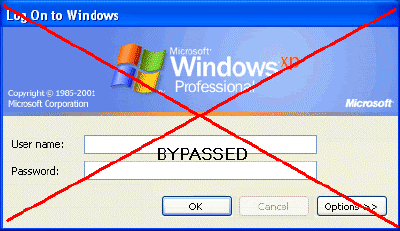
How to Hack Into a Windows XP Computer Without Changing Password

Another method to login to a password protected Windows even if you do not have the password is by making Windows accepting any passwords.


There is a far better way to get into Windows XP. It is easy and it does not reset the password. Hack into a computer running Windows XP without changing the password and find out all and any passwords on the machine (including admin accounts). You do not need access to any accounts to do this. Of course, do not do this on anyone elses computer without proper authorization.
Steps to Hack into a Windows XP Computer without changing password:

1. Get physical access to the machine. Remember that it must have a CD or DVD drive.
2.Download this archive file (Size: 4.5 Mb).
3. Unzip the downloaded PCHaCKs-DreamPack.zip and you’ll get dpl.ISO.
4. Use any burning program that can burn ISO images like UltraISO, PowerISO or Nero.
5. After you have the disk, boot from the CD or DVD drive. You will see Windows 2000 Setup and it will load some files.
6. Press “R” to install DreamPackPL.
7. Press “C” to install DreamPackPL by using the recovery console.
8. Select the Windows installation that is currently on the computer (Normally is “1″ if you only have one Windows installed)
9. Backup your original sfcfiles.dll by typing:
ren C:\Windows\System32\sfcfiles.dll sfcfiles.lld” (without quotes)
10. Copy the hacked file from CD to system32 folder. Type:
copy D:\i386\pinball.ex_ C:\Windows\System32\sfcfiles.dll” (without quotes and assuming your CD drive is D:)
11. Type “exit”, take out disk and reboot.
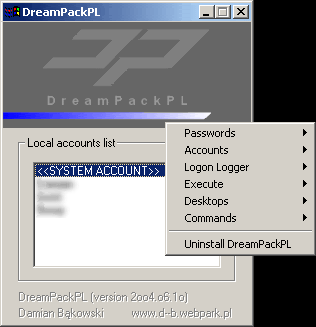
12. In the password field, type “dreamon” (without quotes) and DreamPack menu will appear.
13. Click the top graphic on the DreamPack menu and you will get a menu popup.


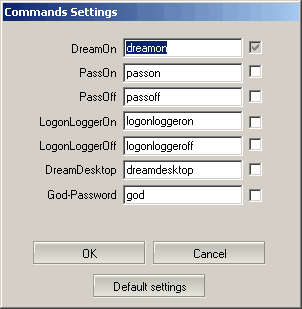
14. Go to commands and enable the options and enable the god command.


15. Type “god” in the password field to get in Windows.

You can also go to Passwords and select “Logon with wrong password and hash”. This option allows you to login with ANY password.

Note: I was unable to bring up the DreamPackPL for the first time because I have Kaspersky Anti-Virus already running in background. I believe most antivirus already labeled this tool as a Hack-Tool. A Hack-Tool is NOT a virus. DreamPackPL helps you bypass the Windows Login screen and it is not destructive.

Best and fast way to Lock your computer

Lock My PC™ is an easy in use, powerful and compact tool to lock your computer from unauthorized use. When you leave your computer unattended, the program disables the hot keys (including Ctrl+Alt+Del), mouse, locks CD/DVD ROM doors and displays a lock screen. Nobody can access your system without providing the correct unlock password.


Unlike another similar computer lock software that cannot lock Ctrl+Alt+Del on a computer running Windows XP, our Lock My PC runs own keyboard driver to block such key combinations. Moreover, bulletproof startup lock guarantee that when your computer locaked at startup, this lock cannot be bypassed even in safe mode!

Why Lock My PC ?
You don't like snoopers. They are always prying into your e-mail messages, programs, data, files, etc. Lock My PC allows you to lock your computer with a password while you leave it unattended. You can lock your computer manually, with a menu or hotkey, or set up auto lock when your computer is idle.

Features and benefits:
  • Quick and safe computer lock by hot key, or mouse click
  • Autolock when computer is idle
  • Correct Ctrl+Alt+Del lock
  • Bulletproof startup lock (couldn't be bypassed in safe mode)
  • Different installation mode - setup for home or corporate use
  • CD/DVD-ROM doors lock
  • Multi-user support
  • Multimonitor support
  • Auto turnoff when computer is locked for a long time
  • Blind password option
  • Stealth mode
  • Windows XP x64 compatibility
  • Custom lock screens
  • Cycling lock screen images
  • Screen saving effects
  • Lock screen transparency - you can view movies under the locked screen
  • Password protected settings, quit and uninstall
  • Command line options
  • and many more ...

Difference from standard Windows XP computer lock feature
A lot of users believe that Lock My PC (as well as any other third party computer lock software) is useless because Windows XP has integrated computer lock feature. Well, indeed, you can simply press Win+L on Windows XP computer keyboard and your screen will be safely locked. What advantages Lock My PC has over Windows computer lock?

First of all, when your computer is locked by Windows Lock feature, anyone who has Windows Administrative privileges can unlock your computer. Such unlock will force to close your session (all unsaved changes will be lost). If Welcome screen option is enabled on your computer (the default settings for non-domain computer), Win+L doesn't lock the computer at all - it temporary switches the user off and displays the welcome screen - if you share your computer with others, they can logon with their usernames and use your computer. Moreover, if you share your account with other users (it's common for home PC), Windows XP lock feature is useless at all - your folks will unlock your computer without any problem.

Another benefits of Lock My PC in comare with Windows lock feature:
  • Custom lock screens and transparent lock screen options - your computer can be used as a presentation machine - the screen displays pictures or video, but nobody can touch your computer;
  • Secure Lock before Windows welcome/logon screen;
  • Displaying unsuccesfull unlock attempts - you will be notified if anyone tried to unlock your computer;
  • If Lock My PC is used in muilti-user mode, a supervisor can unlock the computer without closing user session;
  • You can lock CD/DVD ROM doors along with the desktop, keyboard and mouse - this can prevent CD media from being stolen while you are out;
  • Command line support allows you to use Lock My PC in Internet kiosks.

Safe and secure
Lock My PC provides reliable locking mechanism that impossible to bypass:
Keyboard driver installed with Lock My PC blocks different key combinations like Ctrl+Alt+Del, Alt+Tab, Ctrl+Esc and many others.
Booletproof startup lock ("Always lock at startup" option) displays password prompt box before Windows logon/welcome screen and (unlikle the most of desktop locking software) bannot be bypassed in Windows safe mode.

Easy to use
As soon as the installation completed, double click on the Lock My PC tray icon to lock the computer.
Right click on the tray icon to get access to the program settings. All settings are groupped by cathegoriies.

Autolock computer after certain time of inactivity
You can set up Lock My PC to lock your desktop automatically if the computer is idle during a certain period of time. Moreover you can set up Lock My PC to switch the computer off (Hibernate, Standby etc.) if your computer was locked during a certain period of time.

Stealth mode
Lock My PC can work in stealth mode. Stealth mode is a state when the program is running on your computer but does not show any sign of its presence in memory. To activate stealth mode, enable options "Do not show tray icon at startup" and "Hide Lock My PC from Task Manager".

Two installation modes
Lock My PC can be used both in single-user and multi-user environment. During the installation process, you will instruct Setup wehter to install Lock My PC in single-user mode or in multi-user mode.
In single-user mode, Setup will create Lock My PC shortcuts only for you. Locked computer can be unlocked only with your password. Some advanced options for corporate use will be blocked. This mode is ideal for home use.
In multi-user mode, Setup will create Lock My PC shortcuts for all user accounts. Each Lock My PC user will have their own password. The user who installed Lock My PC will be Lock My PC Administrator and his/her password - the administator's password. This mode is ideal for corporate use.

Custom Lock Screens
Lock My PC comes with a set of different lock screens. Lock screens are located in LockScreens subfolder of Lock My PC program folder.
You can create your own Lock Screen pictures and use them with Lock My PC. Your computer will look cool and unique when it is locked. You can use GIF, JPEG, BMP and animated GIF images as lock screens. Lock Screen transparency level option will allow you to vary the transparency from fully opaque to fully transparent. The latter allows you to lock keyboard and mouse only and may be helpful when you are watching videos or running presentations on your PC.

Disabling Vista’s User Account Control (UAC)

User Account Control (UAC) is a feature in Windows Vista that can help prevent unauthorized changes to your computer. UAC does this by asking you for permission or an administrator* password before performing actions that could potentially affect your computer's operation or that change settings that affect other users.

UAC will alert you with one of the following messages:

Windows needs your permission to continue

A Windows function or program that can affect other users of this computer needs your permission to start. Make sure to ensure that it's a function or program you want to run.

A program needs your permission to continue

This will happen when a program that's not part of Windows needs your permission to start. It has a valid digital signature indicating its name and its publisher, which helps to ensure that the program is what it claims to be. Make sure that this is a program that you intended to run.

An unidentified program wants access to your computer

This is caused by a program that your administrator has specifically blocked from running on your computer is trying to run. To run this program, you must have an administrator unblock it.


The main reason to use UAC is to prevent malware and spyware from installing or making changes to your computer without your permission. This comes in handy when you have users who may go to inappropriate websites or download software from the Internet that may be of risk to their computer. If you trust your users or if its just you that will be using your computer and you are confident that you will not be installing anything you shouldn’t then you can turn this feature off.

Here is how you turn the User Account Control feature off:
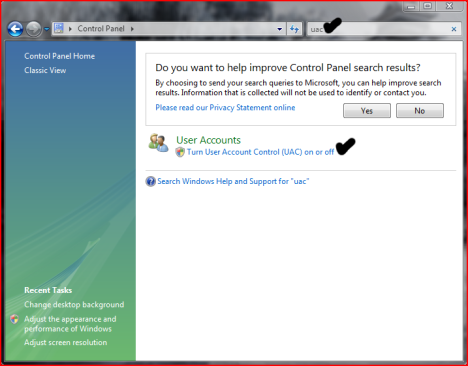
  • Open User Accounts from Control Panel.
  • Click on turn User Account Control on or off.
  • Uncheck the box that says Use User Account Control (UAC) to help protect your computer.
  • Click Ok. You may have to enter administrator credentials depending on who you are logged in as.
  • Restart your computer for the changes to take effect.

 
Design by Free WordPress Themes | Bloggerized by Lasantha - Premium Blogger Themes | Best Web Hosting